how to make your own website
WARNING - this tutorial assumes that you have some basic knowledge of how to use a computer, preferrably windows.
TABLE OF CONTENTS
INTRODUCTION
paradoxically, this blog is being posted on neocities, so it's probably going to reach seasoned indie web veterans who've already made their own sites. but, if i get lucky, ill reach someone who's browsing neocities for the first time and wants to learn how to make a site!
why make a website in the first place, though? i'll list out a few of the pros:
- infinite customization! you're not bound by the UI of whatever social media you're using, you can slap as many ugly gifs on it as you want!
- no posting limits! you dont need to worry about not making a certain number of posts a day (i see you, twitter) or worry about fitting your thoughts into a character limit.
- no algorithm! while this is a bit of a con in terms of finding new content, i think it's a pro to artists and writers who may struggle to get their stuff out there on regular social medias. sure, neocities isnt going to make you famous, but youll almost always find at least a few likemminded individuals if you keep at it.
- it's a detox from how bad social media can get! theres a billion manifestos on neocities about how harmful social media can be, and i know that firsthand. while im not telling you to completely cut it out of your life, dedicating a while to the zen of your website can be really helpful when you feel down in the dumps.
GETTING STARTED - CHOOSING A HOST
if i've convinced you to make a site, you're probably wondering how exactly you get started with it. first of all, you'll need somewhere to host your site. somewhere to actually put it up on the internet, if you will. there's plenty of options for that which aren't listed here (gihub pages, wordpress, etc), but here's the ones i'm familiar with:
NEOCITIES
pros include:
- potentially the most popular indie web hoster online, so there's lots of opportunities for friendships or getting your stuff out there!
- built in social features, so you don't have to go out of your way to obtain the email or other socials of anyone you want to interact with
- free, unless you want to buy supporter for whatever reason (an ungodly high file size limit, custom domains)
- running since 2013, neocities has been online for over a decade at this point.
cons include:
- built in social features. this can be great if you're looking for connections on neocities, but if you just want to get your stuff out there without dealing with anyone, it can be annoying. you can disable the profile page, though.
- free users can only upload certain file types. no mp3 files for you!
- limits on NSFW sites are hazy at best. NSFW sites have been deleted without warning, and the 18+ checkbox completely hides your site from the built in neocites search.
- ran entirely by one guy. if something happens to the founder (or if he just gives up, for whatever reason,) there's no guarantee that it will keep running.
NEKOWEB
pros include:
- can follow other sites to stay updated on what they're up to
- NSFW sites are strictly allowed (to an extent, more info in cons section)
- cute little customizable "site boxes" that preview your site on the explore page
- no file type limit for free users
- premium is cheaper ($3.50 USD vs $5 USD)
- basic code editor is (arguably) better, also includes a more advanced code editor in the form of Nekode
cons include:
- social features are more bare bones than neocities, can't really interact with other sites beyond simply following
- NSFW sites cannot contain real life NSFW.
- very recently created (2024). may stay up for years, might not!
- ran not by one person, but a small team nonetheless. no guarantees the team will stay together.
once you've made up your mind and created an account on the host of your choosing, let's get started with the actual fun part!
ACTUALLY CODING
you could create your site entirely in the built in windows notepad, but that's kind of a form of cruel and unusual punishment. for this tutorial, i'll be using VScode/VScodium, but there's also editors out there such as notepad++.
once you've installed vscod/ium, don't open it up quite yet. first, make a new folder wherever you choose. then, open up vscode. you'll be met with this screen:
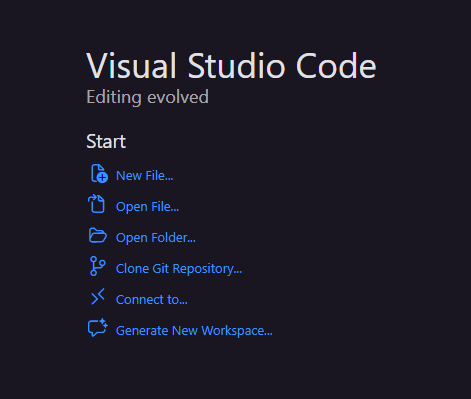
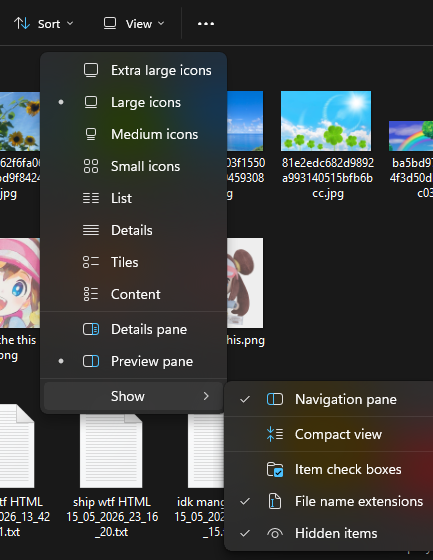
click on open folder. from there, select the folder that you just made. it's empty right now, but you can fix that! create a file called index.html - and make SURE it's not actually index.html.txt! you can check this by making sure that your file extensions are visible by going to view > show > file name extensions in the windows explorer. (ignore my messy downloads folder.)
now, open index.html and write the following into it:
                    <!DOCTYPE html>

                    <html lang="en">

                    <head>

                        <meta charset="UTF-8">

                        <meta name="viewport" content="width=device-width, initial-scale=1.0">

                        <title>Document</title>

                    </head>

                    <body>


                    </body>

                    </html>
you can change <title>Document</title> to whatever you want. this is the name of your page, basically what's displayed on the tab in the browser. here's mine, for reference:

now, to preview your site, open your folder in explorer. drag index.html into your browser. this will preview the page, but you'll have to reload it every time you make a change.
after this, make a new file called whatever you want, but make sure the extension is .css ! for this, i'll be calling it style.css. now, inbetween the head tags (where the title is), write this:
<link rel="stylesheet" href="[YOURFILENAME].css">
right now, everything is blank, but that's okay! that's about to change. in index.html, write something a little like this inbetween the <body> </body> tags:
                    <div class="main_div">

                    <p>hello world!</p>

                    </div>
HTML is a fairly straightforward language, in that the titles of things usually give away what they do. the
<div> tag is basically a container for whatever you put in it. i think of it as a divider. the
</div> class signals that the container is closing, so whatever you put next won't be contained in it.
the <p> tag is what you can put your text in. it doesn't strictly have to say "hello world",
you can put whatever you want in it! always make sure to close it with </p> though, or things can get wonky.
once you've done that, reload the page, and you should see something like this:

the page isn't blank anymore! it does look kind of lame, though... let's fix that by opening the .css file that you made.
type this into the file:
                    body {

                        font-family:comic sans ms;

                        background-color:#baffdd;

                    }
unlike in HTML, in css, you need to put a ; (semicolon) at the end of each setting, or things will get really bad really fast. in css, the semicolon tells the computer that the line is over and it shouldn't expect any more info. this is how a lot of programming languages work, so HTML is a little funny for not doing that.
the body tag is basically where everything is contained in. you can edit it further later, but let's start off with something simple.
the font-family tag does exactly what it says on the tin. it controls the font! let's set it to something distinctive like comic sans ms so you know it worked.
the background-color tag is also self explanitory. you can set it to a web safe name of a color, or you can use a HEX code. i'll be using HEX codes here.
reload the file, and you can see that things are starting to look different:
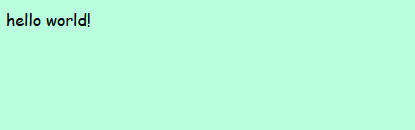
we're making progress! now, let's style the div. notice that when we typed it out in the HTML file, we wrote class="maindiv". the class basically assigns a name to it so that you can give it a unique style in the css. a class is signaled by putting a . (period) in front of the class name in the css file. basically, it'd look something like this:
                    .main_div {


                    }
let's say that we want to add an outline to the div. we can do this by using the border setting. the syntax can be a little confusing for beginners, but it's basically laid out like this:
border: 1px (border width) solid (border style, let's just keep it solid for now) #080863 (color);
put this inbetween the {} tags. so, it'll look like this:
                    .main_div {

                        border: 1px solid #080863;

                    }
reload the page, and the text now has a border around it! it does look kind of funky, but we can fix that in a second.

first of all, let's make it so that the border doesn't span the entire width of the page. let's make a tag called width and set it to, say, 400 pixels (px) and then put it in the { } tags:
                    .main_div {

                        border: 1px solid #080863;

                        width:400px;

                    }
reload the page, and the width is a lot more digestible now.
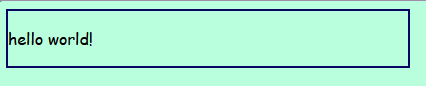
the text kind of mushes up against the border, though, doesn't it? let's make a padding setting so that it doesn't do that anymore. let's also make a margin setting so the container itself isn't so squished against the corner of the screen, either.
the padding and margin settings can be a little confusing for beginners, but the padding tag controls the "padding" on the inside of the container, while margin controls the "padding" on the outside.
add this after the width setting:
                    padding:10px;

                    margin:30px auto;
reload the page, and it should look more like this:
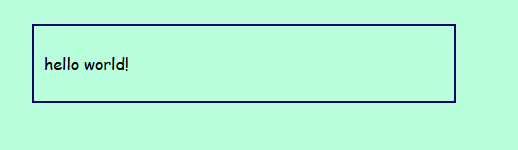
(if you're confused on what the padding and margin settings do respectively, remove one and see what it looks like without it! the auto setting aligns the div in the center. you put it after the 30px because the margin syntax is vertical align and then horizontal align.)
we've already used the background-color setting, so let's use it on the div itself to make it a little prettier. add this into the main_div's { } tags:
background-color: #ffffff;
and now it should look like this!
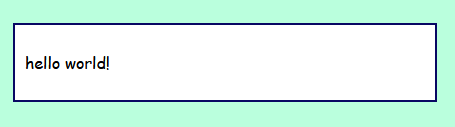
it's still kind of plain though, right? let's add an image to spice things up! you can host the image on something like filegarden, but you can also host it on neocities or nekoweb itself.
in your folder, make a new folder called whatever you want, but i'll be calling it assets. in the assets folder, put whatever image you'd like in it.
now, in the HTML file, create a new line after the <p></p> tags. let's add the image by doing this:
<img src="assets/YOURIMAGE.FILE_EXTENSION">
in my case, it looks like this:
<img src="assets/respect.png">
reload the page, and ta-da! there's an image! but, in my case, i used a pretty big image, so it's clipping out of the container...
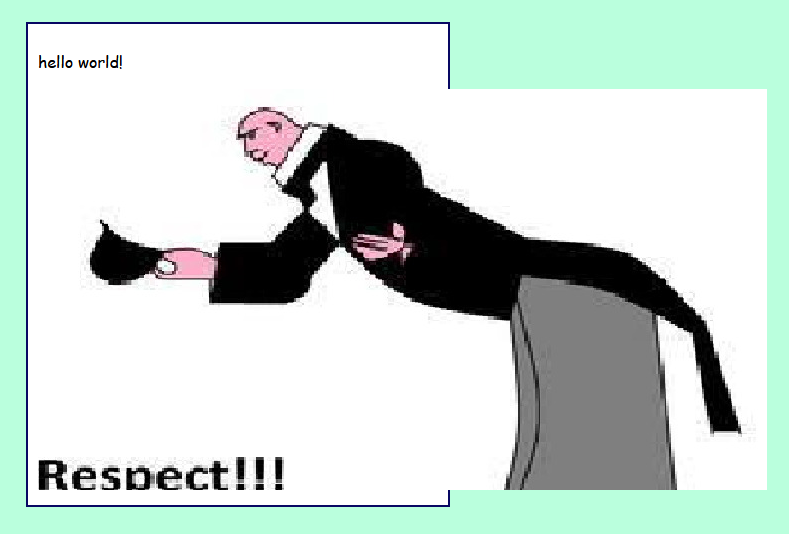
let's fix that! add a class to the image by adding class="my_image" in between the img and src tags on the HTML. now, go back to the css file and create a new class underneath .main_div called .my_image or whatever you called it.
in .my_image, set a width! it can be a set width like 100px, or you could set it to span the entire div by using 100%. let's go with 100% for now.
                    .my_image {

                        width:100%;

                    }
reload the page, and ta-da! the image is now contained perfectly in the container.
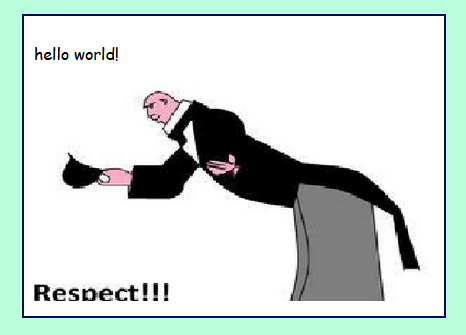
things are starting to shape up, but what if you want to make another page? neocities and nekoweb are fun in that you're not limited to just one page like sites like rentry are!
go back to explorer and make a new file called whatever you want, but i'll be calling it about_me.html
for now. you can make another css file for it, or you can link the same one! it's up to you. fill about_me.html with the same basic format that you did with index.html. basically, it should look like this:
                    <!DOCTYPE html>

                    <html lang="en">

                    <head>

                        <meta charset="UTF-8">

                        <meta name="viewport" content="width=device-width, initial-scale=1.0">

                        <title>Document</title>

                        <link rel="stylesheet" href="style.css">

                    </head>

                    <body>

                    </body>

                    </html>
repeat the steps above and make it look however you want! but, we need to find a way to get to this page, right? go back to index.html and make a new line underneath the image. write this in it:
                    <p>

                        <a href="about_me.html">about me</a>

                    </p>
the <a> tag is a link or an anchor point, but anchor points are less used. here, we're linking our page to another page on the same site, but you can put any page on the internet there! the href="" is the link itself. if you wanted to link to, say, youtube, you would do something like this:
<a href="https://www.youtube.com/">
let's add a bit more text, maybe a few more images or links, and spice things up a bit! now my site is looking like this:
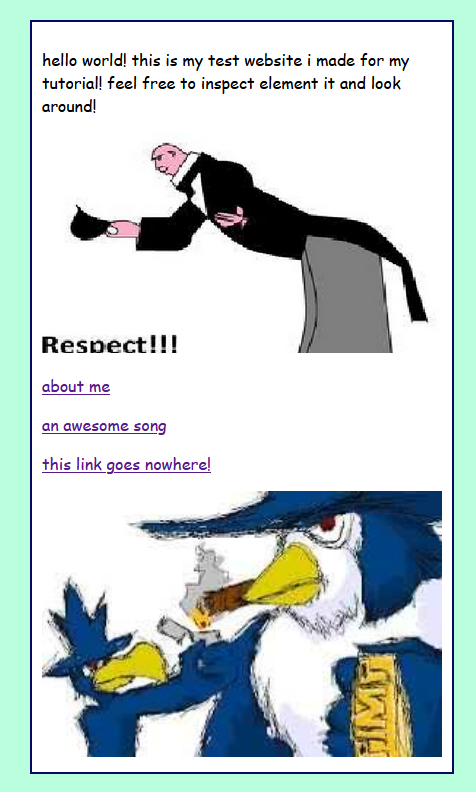
it may not be the most aesthetically pleasing, but this site is fully functional! this is where i turn you free to do your own research on web creation. here's a bunch of helpful links:
HELPFUL LINKS
CODING
- w3schools - HTML tutorials
- w3schools - CSS tutorials
- mdn docs - HTML docs and tutorials
- mdn docs - CSS docs and tutorials
- codepen
- scripted
- loveberry